
Appearance
Stages
Stages represent the predefined steps or milestones involved in completing a task (usually linked to a service like GST filing, accounting,gst They provide a visual and sequential breakdown of the workflow that the team needs to follow.
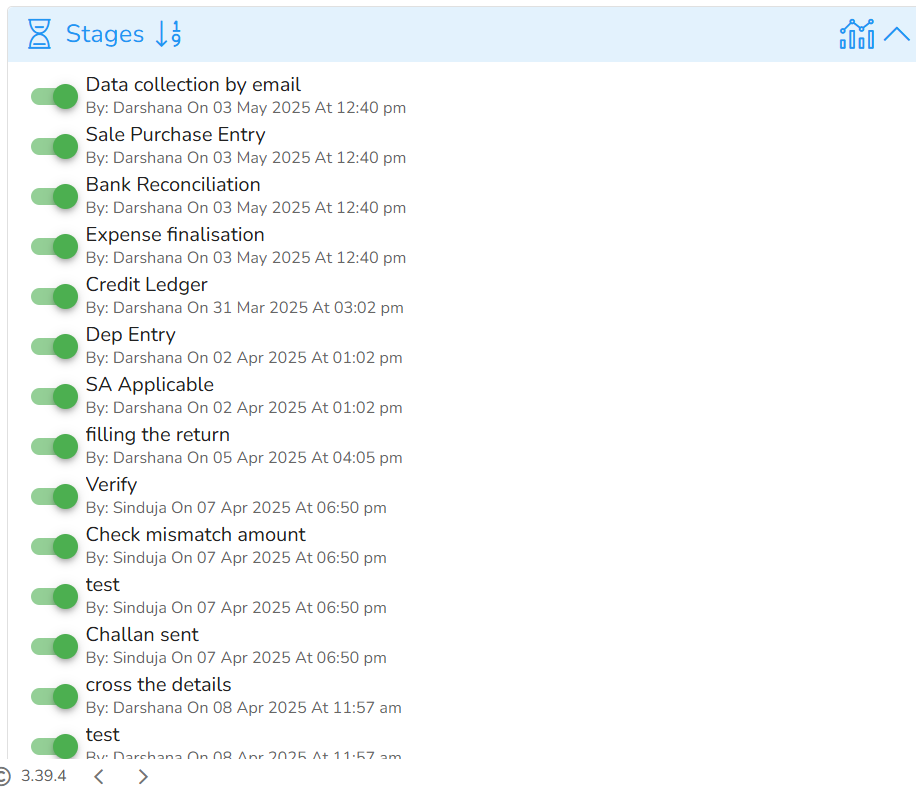
Each stage logs:
1.Completion Status 2.Team Member responsible 3.Timestamp of action
🧾 Example Stages: Data collection by email – Darshana, 03 May 2025, 12:40 pm Sale Purchase Entry – 03 May 2025 Bank Reconciliation – 03 May 2025, 12:41 pm Credit Ledger, Expense Finalisation, etc. Each stage is marked complete with a green indicator.
🧩 Tip:
You can think of stages as the building blocks of the task — each one represents a key step that must be completed to fully deliver the service. Multiple stages give clarity, traceability, and control over complex service workflows.
Notes
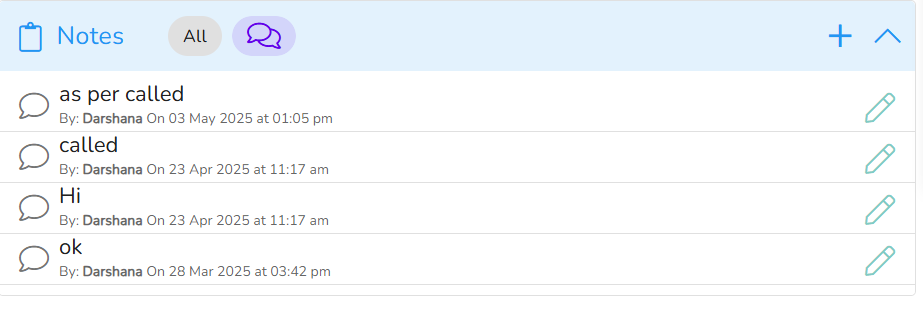
“Notes” is a place where users can add, edit, and view comments or updates related to the task. These notes are stored within the task itself and are visible to all users who have access to that task.
Features of Notes Section
- Free text entry Allows users to write anything – follow-ups, reminders, client call summaries, etc.
- User-stamped Each note displays who wrote it and the timestamp.
- Chronologically ordered Recent notes appear at the top or bottom (depending on configuration).
- Editable Notes can be edited by the user who created them.
Sub Task
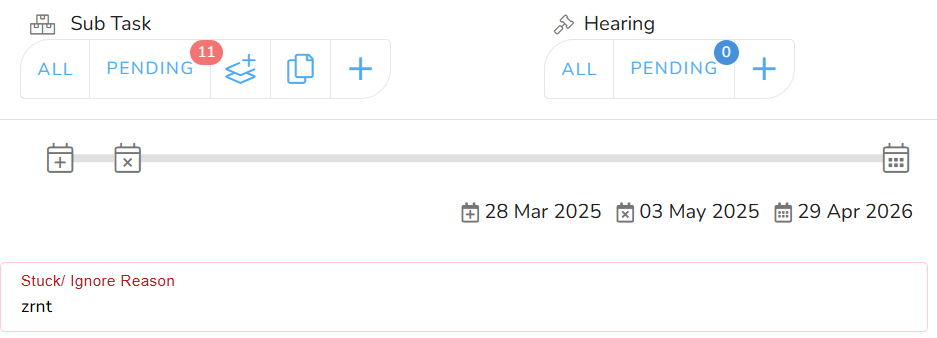
A Sub Task is a smaller, actionable activity that forms part of the larger main task. It allows a task to be broken down into manageable components, assigned individually, and tracked for completion.
Key Features
- Add Sub Tasks Create new subtasks using the plus icon.
- Assignee-specific Assign each subtask to a specific team member.
- Status Tracking Mark as Pending, Completed, or In Progress.
- Deadline Integration Each subtask can have its own due date.
- Linked to Task Timeline They influence the progress of the main task.
Folder
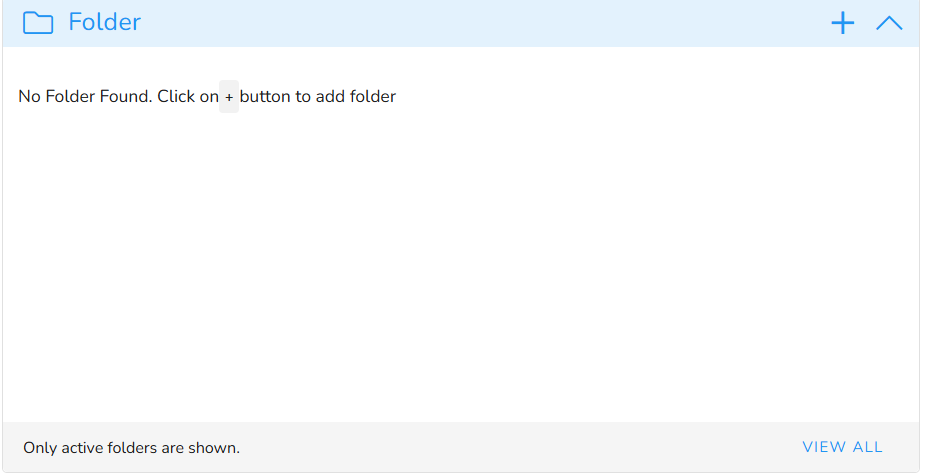
Attach links to physical or cloud folders for storing documents.
1.Current Status: No folders linked.
2.Option: Add folder via + icon.
3.Visibility: "Only active folders are shown."
Shortcuts
Purpose: Save direct links to folders/files used frequently.

History
The History Panel logs every action, update, and modification made to a task — including who made the change, what was changed, and when it was done.
You can access it by clicking the HISTORY button (usually on the bottom-right side of the Task View).
